Chapter 3 · On deck
Workspace
The shared pieces: the board, the traces, your voice.

Hold ⌘ ⌥ and just talk to me. I'm listening.
3.1Around the workspace
Boss mode: the threads you choose, side by side
A short list of the threads you brought in, and up to eight of them open at once, each its conversation condensed.
- Add a thread from the picker at the top of the list, or start a new one with +. Nothing joins by itself, and the list is kept on your account.
- Pick one, two, three or four panes, or six or eight on a wide screen (a layout your window has no room for stays off). Click a thread to open it in the focused pane, Shift-click to open it beside, drag it onto any pane to open it there, and press a pane's number to move to it.
- Each pane is the real conversation, condensed: short replies, the plan and the next step as one line with their answer, and a one-line composer. Open the full thread in place and Esc comes back.
- A thread that needs you says so where it is, in the list and on its pane. J goes to the next one.
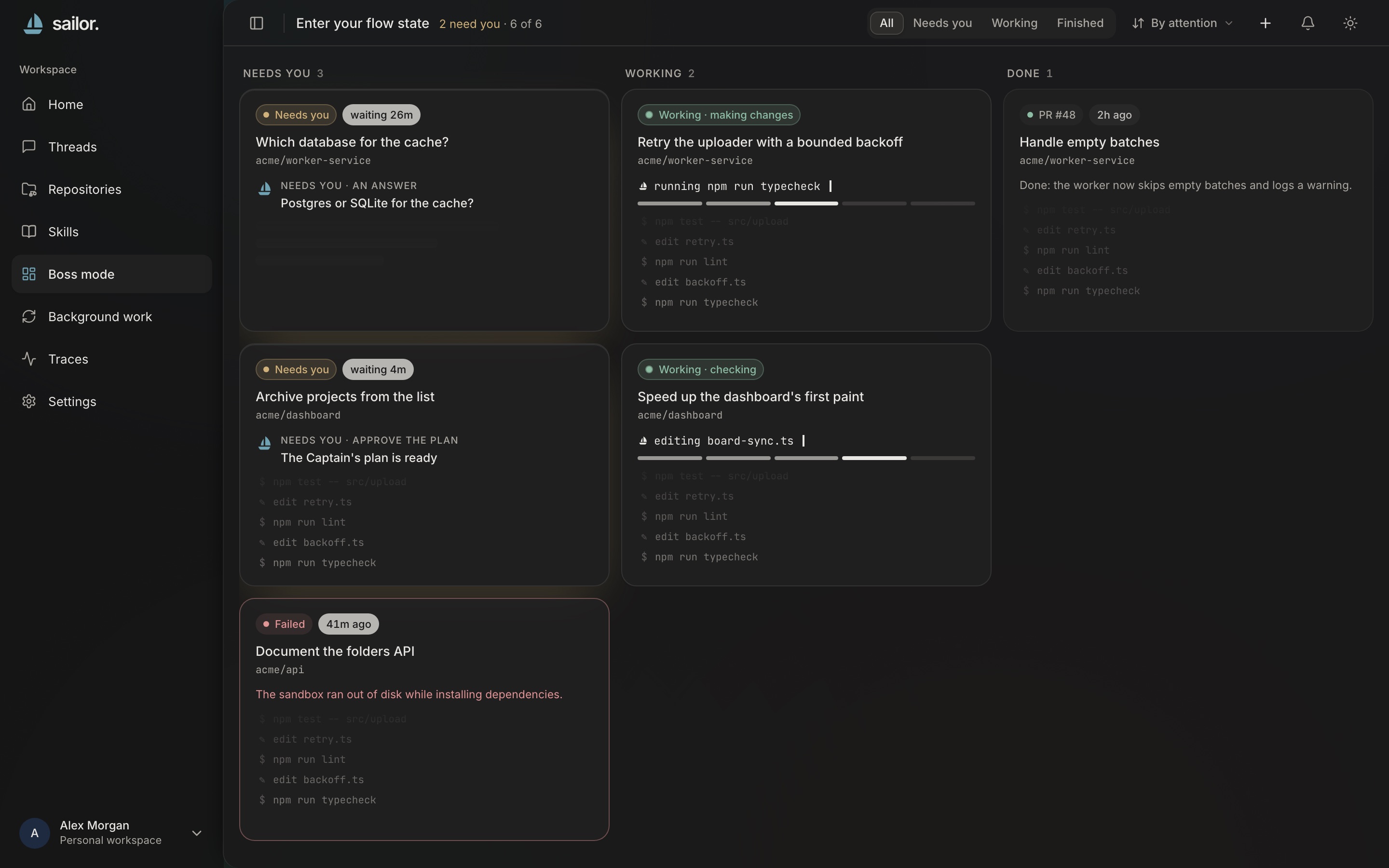
Boss mode: four threads side by side, the ones waiting on you marked where they are.
3.2Around the workspace
Traces: the evidence, not just the answer
A run-by-run view of actions, tokens, timing and outcomes. Open any trace to inspect how the work happened.
Every run writes a journal as it goes: each step, the tokens it spent, what it cost and how long it took. The Traces page lists them, paged, with a filter by outcome and a search of the page you are on. A pull request links straight to its trace, so a reviewer can see the path, not only the diff.
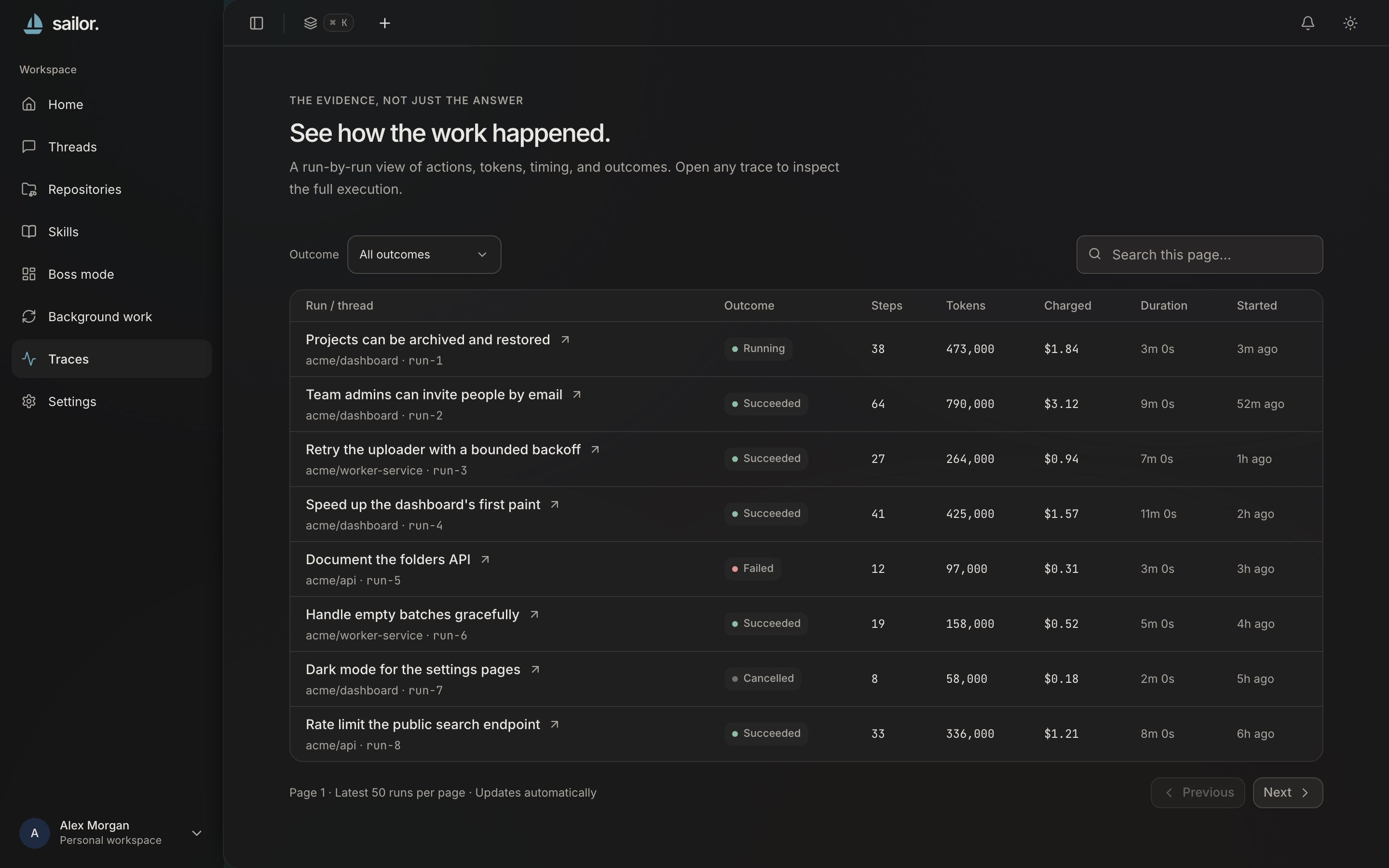
The Traces page: every run, filterable by outcome.
| Where | What you get |
|---|---|
| Traces page | Every run, filterable by outcome, with a search of the page you are on. Open one for its steps. |
| A pull request | A link to the trace that produced it. |
| Billing ledger | Usage entries, so cost can be read against the run that incurred it. |
3.3Around the workspace
The voice assistant
Hold a key and talk. The Captain listens, sees the screen you are on, and works the interface for you.

Try it: hold the keys
Waiting for a chord…
Press ⌘ ⌥ together and release to listen. Nothing is sent from here.
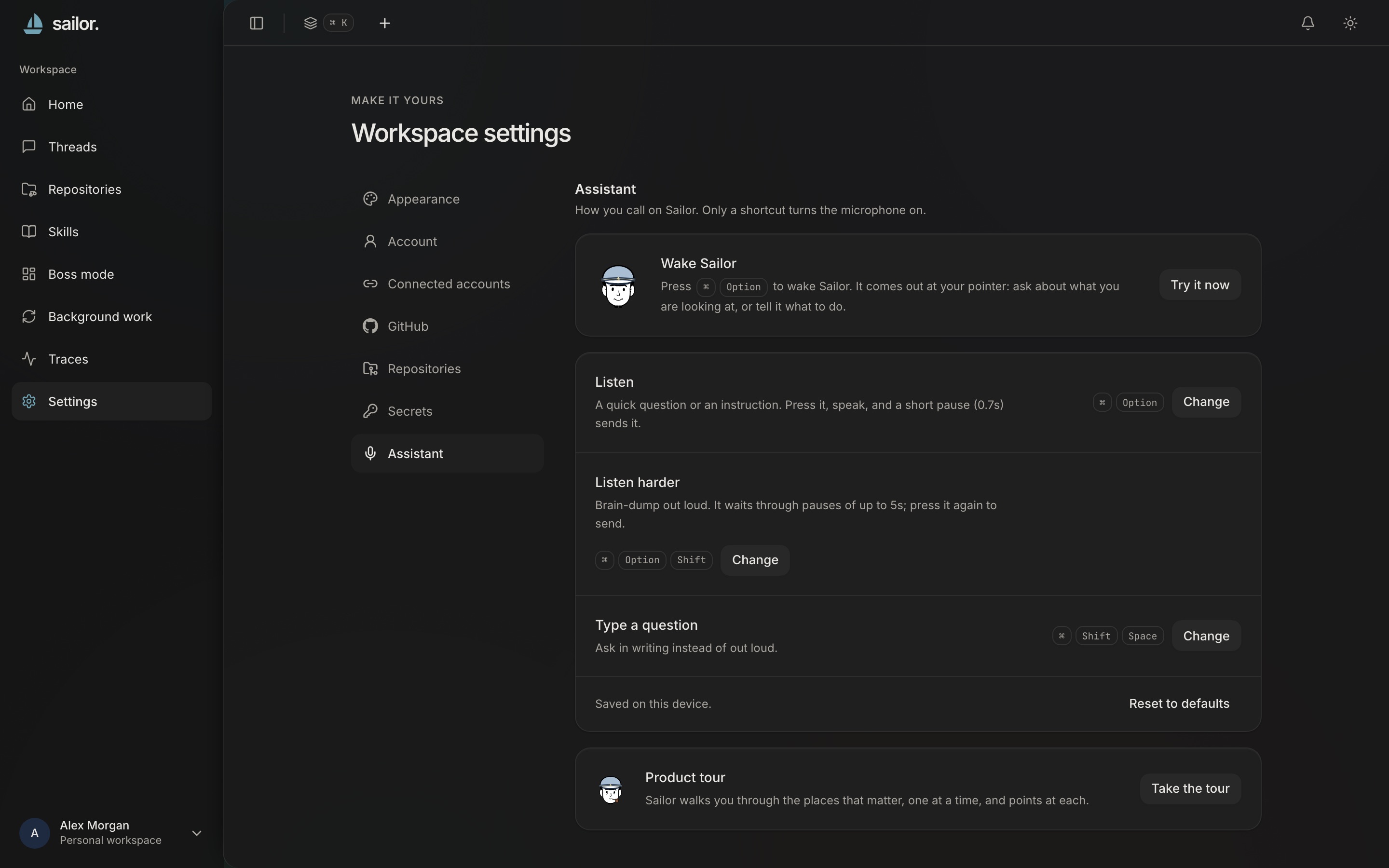
Settings → Assistant: the three shortcuts, and the product tour to take again.
| Shortcut | Keys | What it does |
|---|---|---|
| Listen | ⌘ ⌥ | It listens, and a short pause (about 0.7 s) sends. |
| Listen hard | ⌘ ⌥ ⇧ | It listens through pauses up to 5 s, so you can think aloud and brain-dump. |
| Type | ⌘ ⇧ Space | Type a question instead of speaking. |
- A chord of modifiers is pressed together and released with nothing between. Off an Apple keyboard, Ctrl stands in for ⌘.
- Only a shortcut turns the microphone on. Each one can be changed in Settings → Assistant, where you can also retake the product tour.
- Listening with nothing heard for 15 s (45 s when listening hard) stops and rests.
3.4Around the workspace
Notifications and email
Sailor lets you walk away, and brings you back when it matters.
The bell
- A question is waiting for your answerneeds you
- Your approval is neededneeds you
- Work shippedinfo
- A pull request is openinfo
- Repository setup finishedinfo
- Repository setup failedneeds you
- A run failedneeds you
Email updates
Confirm an address in Settings → Account from the link Sailor emails you. Then any task you ask about at one of its approval gates can Email me updates: it writes when it needs you and when its report is ready. The same page lists every email Sailor tried to send and whether it was accepted, and can send a test.
Where everything is set: Settings, page by page.